
Table of Contents
Q.1. Describe the characteristic features of input and output devices of a computer system.
Input and output devices are essential components of a computer system that enable interaction between users and the digital world. Here are the characteristic features of these devices:
Input Devices:
- Data Entry: Input devices allow users to enter data into the computer system. They provide mechanisms to input text, numbers, commands, and other forms of data.
- User Interaction: Input devices facilitate user interaction with the computer. They enable users to control and manipulate the system by providing input signals or commands.
- Versatility: Input devices come in various forms to accommodate different types of data input. Examples include keyboards for typing, mice or trackpads for pointing and clicking, touchscreens for direct interaction, scanners for converting physical documents into digital form, and microphones for audio input.
- Sensing Capabilities: Many input devices have sensing capabilities to detect and convert physical stimuli into digital signals. For example, cameras capture images or videos, microphones capture audio, and sensors detect movements or touch.
- Real-time Feedback: Input devices often provide real-time feedback to users. For example, keyboards provide tactile feedback through key presses, mice provide cursor movement on-screen, and touchscreens respond immediately to touch input.
- Accessibility: Input devices are designed to cater to a wide range of users, including those with disabilities. Features like large keys, braille labels, voice recognition, and eye-tracking technology help make computers accessible to everyone.
Output Devices:
- Display Output: Output devices provide visual feedback to users by displaying processed information on screens or monitors. They present text, images, videos, and graphical user interfaces.
- Audio Output: Some output devices produce sound or audio feedback. Examples include speakers or headphones, which allow users to listen to music, videos, or system notifications.
- Hard Copy Output: Output devices like printers or plotters produce physical copies of digital information. They can print documents, images, graphs, and other visual representations.
- Feedback Mechanisms: Output devices provide feedback to users about the status of their actions or system processes. This feedback can be in the form of progress bars, notifications, alerts, or error messages.
- Accessibility: Similar to input devices, output devices are designed with accessibility in mind. For instance, text-to-speech technology can read out text on the screen for users with visual impairments, and braille displays provide tactile output.
Both input and output devices are designed to facilitate seamless interaction between users and the computer system. They provide mechanisms for data input, user control, feedback, and information output in various formats. The versatility and accessibility of these devices ensure that users can effectively communicate with and utilize the capabilities of the computer system.
OR
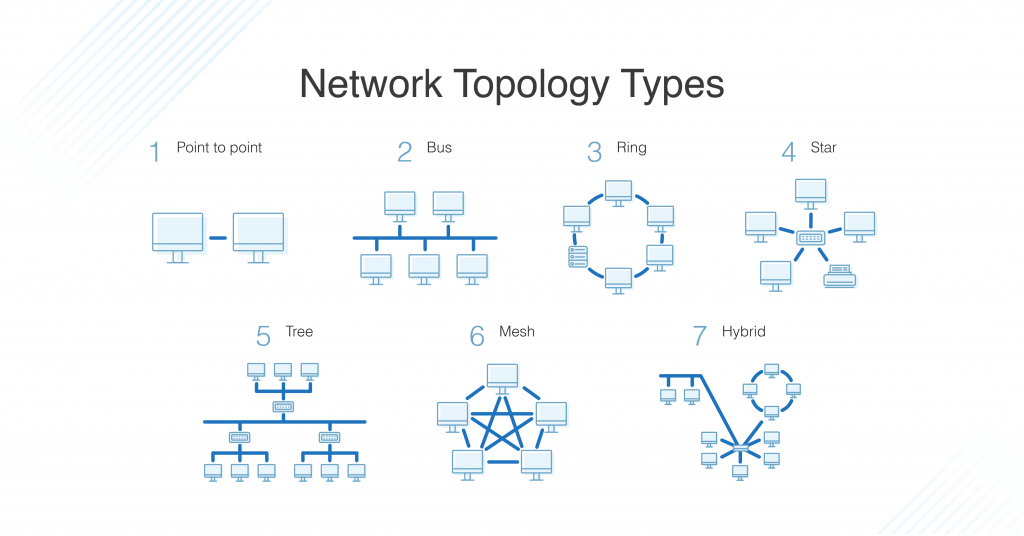
What is Topology? Discuss the various topologies with diagram.
Topology refers to the physical or logical layout of a computer network. It defines how devices are interconnected and how data flows within the network. There are several types of network topologies, each with its own characteristics and advantages. Here, we will discuss some common network topologies along with diagrams:
- Bus Topology: In a bus topology, all devices are connected to a single communication line called a “bus.” Data is transmitted in both directions along the bus, and each device receives the transmitted data. However, the data is only intended for the device to which it is addressed. The bus topology is straightforward to implement and cost-effective but may suffer from a single point of failure if the main bus line is disrupted.
- Star Topology: In a star topology, all devices are connected to a central device, usually a switch or hub. The central device acts as a connection point, and data is transmitted from one device to another through the central device. Each device has a dedicated connection to the central device, providing high reliability and easy fault detection. However, the failure of the central device can disrupt the entire network.
- Ring Topology: In a ring topology, devices are connected in a circular loop, with each device connected to two adjacent devices. Data is transmitted in one direction around the ring. When a device receives data intended for another device, it passes the data along to the next device until it reaches the destination. Ring topologies provide equal access to all devices and have no collisions. However, a failure in one device or connection can disrupt the entire network.
- Mesh Topology: In a mesh topology, every device is connected directly to every other device in the network, forming a full mesh of connections. This creates multiple redundant paths for data transmission, enhancing reliability and fault tolerance. Mesh topologies can be classified as partial mesh (only a subset of devices directly connected) or full mesh (every device directly connected). Mesh topologies provide high resilience but can be complex to implement and require more cabling.
- Tree Topology: The tree network topology, also called a star of stars, is a network where star topologies are themselves connected in a star configuration. Many larger Ethernet switch networks including data center networks are configured as trees.
These are just a few examples of network topologies. There are other topologies like tree topology, hybrid topology, and more. Each topology has its own advantages and is suited for different network requirements. The selection of a specific topology depends on factors such as scalability, fault tolerance, cost, and network design goals.
Q.2. What is MS-DOS? List any five Internal and External commands with syntax of MS-DOS.
MS-DOS (Microsoft Disk Operating System) is an operating system that was widely used on IBM-compatible personal computers during the 1980s and 1990s. It provided a command-line interface for users to interact with the computer system.
Here are five internal and external commands commonly used in MS-DOS, along with their syntax:
Internal Commands:
Example of MS-dos Internal Command Are:
• CLS – It is a command that allows you to clear the complete contents of the screen and leave only a prompt.
• BREAK – Break can be used to enable or disable the braking capability of the computer.
• REN – It is used to rename files and directories from the original name to a new name.
• CHDIR – Chdir (change directory) is a command used to switch directories in MS-DOS.
• EXIT – The exit command is used to withdrawal from the currently running application and the MS-DOS session.
• RMDIR – Removes an empty directory in MS-DOS.
• DEL- Del is a command used to delete files from the computer.
• COPY – Allows you to copy one or more files to an alternate location.
• VOL – Displays the volume of information about the designated drive.
• TYPE- Display the contents of a text fileommand is used to delete files from a specified directory. The /P option prompts for confirmation before deleting each file.
• DATE – The date command can be used to look at the current date of the computer as well as change the date to an alternate date.
• TIME – Allows the user to view and edit the computer’s time.
• DIR – The dir command displays information about files and directories, and how many spaces available.
• SET – Allows you to change one variable or string to another.
• MKDIR/MD – Allows you to create directories in MS-DOS.
• PATH – Path is used to specify the location where MS-DOS looks when using a command.
• DISKCOMP- Comparing two diskettes.
• DISKCOPY- Copying a diskette.
• RD- Remove a directory.
External Commands:
• DELTREE- Short for delete tree, deltree is a command used to delete files and directories permanently from the computer.
• TREE- Allows the user to view a listing of files and folders in an easy to read the listing.
• PRINT – The print command allows users to print a text file to a line printer, in the background.
• FIND – Allows you to search for text within a file.
• XCOPY – Xcopy is a powerful version of the copy command with additional features; has the capability of moving files, directories, and even whole drives from one location to another.
• DISK COMP- Compares the contents of a floppy disk in the source drive to the contents of a floppy disk in the target drive.
• FORMAT – Format is used to erase information off of a computer diskette or fixed drive.
• ATTRIB – Attrib allows a user to change the attributes of a file or files.
• SORT– Sorts the input and displays the output to the screen.
• CHKDSK– Chkdsk is a utility that checks the computer’s hard drive status for any cross-linked or any additional errors with the hard drive.
• FORMAT – Format a diskette.
• PRINT – Printing a file.
• MOVE– Allows you to move files or directories from one folder to another, or from one drive to another.
OR
Define Operating System. Describe the functions of an operating system.
An operating system (OS) is a software that acts as an interface between users and the computer hardware. It manages and controls the resources of a computer system, providing a platform for other software applications to run efficiently. The functions of an operating system can be broadly categorized into the following:
- Process Management: The operating system manages processes, which are instances of executing programs. It allocates system resources such as CPU time, memory, and input/output devices to different processes, ensuring fair and efficient utilization of resources. It also handles process scheduling, synchronization, and communication between processes.
- Memory Management: The operating system is responsible for managing the computer’s memory. It allocates memory to processes, tracks memory usage, and ensures that processes can access the required memory locations. It also handles memory allocation and deallocation, virtual memory management, and memory protection to prevent unauthorized access.
- File System Management: The operating system provides a file system that organizes and manages files on storage devices such as hard drives or SSDs. It handles file creation, deletion, and modification, as well as file organization, access control, and disk space management. The file system ensures data integrity, supports file permissions, and provides a hierarchical structure for efficient file organization.
- Device Management: The operating system manages input/output (I/O) devices such as keyboards, mice, printers, and network interfaces. It handles device drivers, which are software components that enable communication between the operating system and devices. The operating system manages device allocation, handles device interrupts, and provides an interface for applications to interact with devices.
- User Interface: The operating system provides a user interface (UI) that allows users to interact with the computer system. It can be a command-line interface (CLI) or a graphical user interface (GUI). The UI provides features such as file management, program execution, and system configuration, making it easier for users to utilize the system’s capabilities.
- Security: The operating system plays a crucial role in ensuring the security of the computer system. It implements security measures such as user authentication, access control, and encryption to protect data and prevent unauthorized access. It also handles system vulnerabilities, security patches, and antivirus software integration to safeguard the system from threats.
- Error Handling: The operating system detects and handles errors and exceptions that occur during system operation. It provides error messages, logs, and recovery mechanisms to minimize system downtime and prevent data loss. It also handles system crashes and restarts the system if necessary.
- Resource Allocation and Optimization: The operating system optimizes the allocation of system resources to achieve maximum performance and efficiency. It manages the allocation of CPU time, memory, disk space, and network bandwidth to different processes and applications. It employs algorithms and techniques to prioritize and schedule tasks, balance the system load, and ensure optimal resource utilization.
These functions collectively ensure the smooth operation and efficient utilization of computer resources. The operating system acts as a fundamental layer of software that enables users to interact with the computer system and ensures the proper execution of software applications.
Q.3. What is Cache Memory?
Cache memory is a small, high-speed memory component located between the CPU (Central Processing Unit) and the main memory of a computer system. It is designed to store frequently accessed data and instructions to improve the overall performance of the system.The primary purpose of cache memory is to reduce the time it takes to access data from the main memory, which is relatively slower compared to the CPU. By keeping a copy of frequently used data closer to the CPU, the cache memory reduces the need for the CPU to fetch data from the slower main memory.
Cache memory operates based on the principle of locality, which states that programs tend to access data and instructions that are spatially or temporally close to each other. There are two main types of cache memory:
- Instruction Cache (I-cache): This cache stores instructions that the CPU fetches for execution. It helps in reducing the time needed to retrieve instructions from the main memory, thus improving instruction execution speed.
- Data Cache (D-cache): This cache stores frequently accessed data. It holds copies of data that the CPU may need in its immediate calculations or data transfers. By retrieving data from the cache instead of the main memory, the CPU can access the data much faster.
Cache memory works with a hierarchy of levels, with each level being larger but slower than the previous one. The cache hierarchy typically includes L1 (Level 1), L2 (Level 2), and sometimes even L3 (Level 3) caches. The L1 cache is the closest and fastest to the CPU, followed by the L2 and L3 caches, which are larger but slower.When the CPU needs to access data, it first checks the L1 cache. If the data is found in the cache (cache hit), it can be accessed quickly. If the data is not present in the L1 cache (cache miss), the CPU checks the higher-level caches or the main memory. If the data is not found in any of the caches, it is fetched from the main memory and stored in the cache for future use.
Cache memory operates with a mechanism called cache coherency, which ensures that the data stored in the cache remains consistent with the data in the main memory. When data is modified in the cache, it is eventually written back to the main memory to maintain data integrity.In summary, cache memory is a high-speed, smaller-sized memory component that stores frequently accessed instructions and data. It helps reduce the latency in fetching data from the slower main memory, improving overall system performance by providing faster access to the CPU.
OR
What are the limitations of computer?
Despite their remarkable capabilities, computers have certain limitations. Some of the limitations of computers include:
- Lack of Creativity and Intuition: Computers operate based on predefined instructions and algorithms. They lack the ability to think creatively or intuitively like humans. They cannot generate original ideas, make intuitive judgments, or understand complex human emotions.
- Dependency on Instructions: Computers are entirely dependent on instructions provided by programmers or users. They cannot perform tasks that are not explicitly programmed or defined. They require precise and accurate instructions to carry out any operation.
- Lack of Common Sense: Computers do not possess common sense reasoning or contextual understanding. They cannot interpret information based on broader knowledge or make logical deductions from incomplete or ambiguous data.
- Inability to Learn and Adapt: While machine learning and artificial intelligence techniques allow computers to learn and adapt to some extent, they still lack the ability to learn and improve autonomously without human intervention. They require human input to update their algorithms and adapt to new situations.
- Vulnerability to Errors: Computers are prone to errors, whether it’s due to hardware malfunctions, software bugs, or human mistakes in programming. Even a small error in the code or data input can lead to significant problems, causing crashes, incorrect results, or system failures.
- Limited Understanding of Context: Computers lack an inherent understanding of the context in which they operate. They process information purely based on algorithms and data, without a deep understanding of the real-world meaning or significance behind the information.
- Dependence on Power and Infrastructure: Computers require a continuous power supply to function. They are also dependent on supporting infrastructure such as networks, servers, and storage systems. Any disruption in power or infrastructure can render the computer system non-functional.
- Ethical and Moral Dilemmas: Computers are incapable of making ethical or moral judgments. They are programmed to follow instructions and algorithms without considering the ethical implications of their actions. It is the responsibility of humans to ensure that computers are programmed and used ethically.
- Limited Physical Interaction: Computers primarily rely on input devices such as keyboards, mice, and touchscreens for interaction. They lack physical senses like touch, taste, smell, and limited visual perception. This limits their ability to interact with the physical world in the same way humans do.
- Privacy and Security Concerns: Computers store and process vast amounts of personal and sensitive information. This raises concerns about privacy and security. Computers are susceptible to cyber-attacks, data breaches, and unauthorized access if not properly protected.
While computers have revolutionized various aspects of our lives, these limitations highlight the areas where human intervention, critical thinking, and decision-making are still indispensable.
Q.4. Differentiate between the following (any two):
(a) Computer Hardware and Software
| Computer Hardware | Software |
|---|---|
| Physical components of a computer system | Programs and data that instruct the computer |
| Examples: CPU, memory, motherboard, hard drive | Examples: Operating system, applications, games |
| Tangible and can be touched or seen | Intangible and cannot be physically touched |
| Provides the foundation for running software | Executes instructions and performs tasks |
| Can be upgraded or replaced to enhance performance | Can be installed, updated, or uninstalled |
(b) MAN and WAN
| Metropolitan Area Network (MAN) | Wide Area Network (WAN) |
|---|---|
| Covers a larger geographic area, typically a city or town | Spans a wide geographical area, often across multiple cities |
| Connects multiple Local Area Networks (LANs) | Connects LANs across different locations or regions |
| Operated and maintained by a single organization | May be operated by multiple organizations or service providers |
| Provides high-speed connectivity within a specific region | Offers long-distance connectivity between different regions |
| Examples: Cable TV network, campus network | Examples: Internet, global corporate networks |
(c) RAM and ROM
| Random Access Memory (RAM) | Read-Only Memory (ROM) |
|---|---|
| Volatile memory that temporarily stores data | Non-volatile memory that permanently stores data |
| Used for active data and program execution | Contains firmware and instructions that cannot be modified |
| Data can be read from and written to the memory | Data is pre-recorded during manufacturing |
| Content is lost when the computer is powered off | Retains data even when the computer is powered off |
| Examples: DDR4 RAM, SDRAM | Examples: BIOS ROM, firmware, microcode |
(d) Spreadsheet and Word Processor
| Spreadsheet | Word Processor |
|---|---|
| Used for organizing, analyzing, and manipulating numerical data | Primarily used for creating and editing text documents |
| Organizes data in a grid-like structure with rows and columns | Focuses on the layout, formatting, and editing of text |
| Supports formulas and functions for calculations and data analysis | Offers features like spell check, grammar check, and formatting options |
| Examples: Microsoft Excel, Google Sheets | Examples: Microsoft Word, Google Docs |
| Commonly used for financial analysis, data management, and reporting | Commonly used for writing reports, letters, essays, etc. |
Q.5. What is Internet Browser and Email provider?
An Internet browser, also known as a web browser, is a software application that allows users to access and navigate the World Wide Web. It enables users to view web pages, access websites, and interact with various online content. Internet browsers provide a graphical user interface (GUI) that allows users to enter web addresses (URLs), search for information, and navigate through different web pages. Examples of popular internet browsers include Google Chrome, Mozilla Firefox, Microsoft Edge, and Safari.
An email provider, also known as an email service provider or ESP, is a company or organization that offers email services to users. Email providers allow individuals and businesses to create, send, receive, and manage email messages over the internet. They provide email servers, storage space, and email client software or web interfaces for users to access their email accounts. Common email providers include Gmail (by Google), Outlook.com (by Microsoft), Yahoo Mail, and Apple Mail. These providers offer features such as spam filtering, email organization, attachment handling, and integration with other services.
Q.6. Match the following:
(a) Co-axial Cable |
(i) Volatile Memory |
(b) Nibble |
(ii) Input Device |
(c) Bar Code Reader |
(iii) Browsing Tool |
(d) Internet Explorer |
(iv) Transmission Channel |
(e) RAM |
(v) 4 Bits |
Co-axial Cable |
(iv) Transmission Channel |
Nibble |
(v) 4 Bits |
Bar Code Reader |
(ii) Input Device |
Internet Explorer |
(iii) Browsing Tool |
RAM |
(i) Volatile Memory |
Q.7. State True or False:
(a) Dot Matrix Printer is an example of Non-Impact Printer.
True: Dot Matrix Printer is indeed an example of a Non-Impact Printer. Non-Impact Printers use methods other than striking a ribbon against paper, which is the case with impact printers like typewriters. Dot Matrix Printers create characters by striking pins against an inked ribbon, but without direct impact on the paper.
(b) In Ms-Excel, the formula always starts with an (=) to” sign.
True: In Microsoft Excel, formulas always start with the equals (=) sign. This signifies to the software that the following characters are part of a formula and need to be evaluated as such. The equals sign is necessary to distinguish formulas from regular text or numbers.
(c) Windows Explorer is a browsing tool.
False: Windows Explorer is not a browsing tool. Windows Explorer is the file management application in the Windows operating system. It allows users to navigate and manage files and folders on their computer. Browsing tools, on the other hand, typically refer to web browsers like Internet Explorer, Google Chrome, or Mozilla Firefox, which are used to access and browse websites on the internet.
(d) Each high level language requires its own translator.
False: High-level languages do not require their own translators. High-level languages are designed to be more human-readable and closer to natural languages, making it easier for programmers to write code. However, they still need to be translated into machine language, which is the language understood by the computer’s hardware. This translation is done by a compiler or interpreter specific to the high-level language, not each language requiring its own translator.
(e) Machine language is consists of 0’s and 1’s.
True: Machine language, also known as machine code, consists of binary digits (0s and 1s). It is the lowest-level programming language understood directly by the computer’s hardware. Each instruction and piece of data in machine language is represented by a series of 0s and 1s, which the computer’s processor can interpret and execute.
Q.8. Fill in the blanks:
(a) The part of taskbar on which time appears is known as __________.
The part of the taskbar on which time appears is known as the “System Tray” or “Notification Area”. The System Tray is typically located on the right side of the taskbar in the Windows operating system. It displays various icons, including the current time, system notifications, and background processes running on the computer. Users can interact with the icons in the System Tray to access settings, monitor system status, or receive notifications from applications.
(b) Automated loom was invented by __________.
The automated loom was invented by “Joseph Jacquard”. Joseph Jacquard was a French weaver and inventor who developed the Jacquard loom in the early 19th century. The Jacquard loom revolutionized the textile industry by introducing an automated mechanism that used punched cards to control the weaving patterns. This innovation allowed for complex and intricate designs to be produced more efficiently, replacing the manual labor required for each individual weave.
(c) Extension of Ms-Power Point file is __________.
The extension of an MS-PowerPoint file is “.ppt” (for PowerPoint 97-2003) or “.pptx” (for PowerPoint 2007 onwards). The extension of a file represents the file type or format. In the case of Microsoft PowerPoint, the file extension “.ppt” is used for older versions of PowerPoint (97-2003), while the “.pptx” extension is used for PowerPoint files created with the newer versions (2007 onwards) using the Open XML format.
(d) The default opening screen of a window is called __________.
The default opening screen of a window is called the “Desktop”. The desktop is the primary visual interface of a computer’s graphical user interface (GUI). It is the background screen that appears after the computer boots up or when all windows are minimized. The desktop provides a workspace for users to organize and access files, folders, and application shortcuts. It often includes icons, a taskbar, and a wallpaper, serving as a starting point for launching applications and managing files.
(e) A translator is a __________ Software.
A translator is a “Language Processing” software. In the context of software development, a translator refers to a program or tool that converts source code written in one programming language into machine-readable code or instructions. This translation process enables the computer’s hardware to execute the instructions. Translators include compilers, interpreters, assemblers, and other software tools that facilitate the conversion of code from high-level languages like Java, C++, or Python into low-level machine language understood by the computer. The term “Language Processing” encompasses these translation processes.