
Table of Contents
Q.1. What is an Operating System? Explain with example.
Operating System:
An operating system (OS) is a software program that acts as an intermediary between the user and the computer hardware. It manages the resources and provides an environment for executing other software applications. The primary functions of an operating system include managing memory, managing files and directories, managing input/output devices, and providing a user interface.
Example: Windows 10
Operating System: Definition and Example
An operating system (OS) is a software program that acts as an intermediary between computer hardware and software applications. It provides a platform for executing and managing various programs, controlling hardware resources, and facilitating user interaction. The primary functions of an operating system include process management, memory management, file system management, device management, and user interface.
Example: Microsoft Windows
Microsoft Windows is an example of a popular operating system used by millions of individuals and organizations worldwide. It provides a comprehensive set of features and functionalities that enable users to effectively interact with their computers. Here are some key aspects of Windows as an operating system:
1. Process Management: Windows manages the execution of processes (programs) on the computer system. It allocates system resources, such as CPU time and memory, to different processes, ensuring fairness and efficiency.
2. Memory Management: Windows oversees the allocation and management of computer memory. It assigns memory space to different processes, tracks their memory usage, and optimizes memory utilization to enhance overall system performance.
3. File System Management: Windows offers a hierarchical file system that organizes and stores data in files and directories. It provides tools for creating, modifying, organizing, and accessing files, ensuring data integrity and security.
4. Device Management: Windows facilitates communication between hardware devices, such as printers, scanners, and input/output devices, and software applications. It includes device drivers that enable the operating system to interact with hardware effectively.
5. User Interface: Windows provides a graphical user interface (GUI) that allows users to interact with their computers through visual elements such as icons, menus, and windows. The GUI makes it easier for users to navigate, launch applications, and perform tasks without the need for complex command-line operations.
6. Networking: Windows includes networking capabilities, enabling users to connect their computers to local area networks (LANs) and the internet. It supports various network protocols, facilitates file sharing, and provides tools for network configuration and troubleshooting.
7. Security: Windows incorporates security features to protect user data and the system from unauthorized access and malicious software. It includes features like user account management, file encryption, firewall protection, and antivirus software integration.
In conclusion, an operating system serves as a crucial software layer that enables users to effectively utilize computer hardware and software applications. Microsoft Windows, with its extensive features and functionalities, exemplifies the role of an operating system in managing processes, memory, files, devices, and user interaction.
OR
Explain the salient features of windows operating system.
Salient Features of Windows Operating System:
Windows Operating System, developed by Microsoft Corporation, is one of the most widely used operating systems globally. It offers various salient features that contribute to its popularity and usability. The key features of Windows Operating System are:
- Graphical User Interface (GUI): Windows provides a user-friendly graphical interface that allows users to interact with the computer system using visual elements such as icons, windows, menus, and buttons. This makes it easier for users to navigate and perform tasks without the need for complex command-line instructions.
- Multitasking and Multithreading: Windows supports multitasking, allowing users to run multiple applications simultaneously. It utilizes preemptive multitasking, where the operating system allocates CPU time to different applications based on priority. Additionally, Windows supports multithreading, enabling multiple threads within a single application to execute concurrently, improving overall performance and responsiveness.
- File Management: Windows offers a comprehensive file management system, allowing users to create, organize, copy, move, and delete files and folders. It provides a hierarchical file structure and supports various file systems, including FAT32, NTFS, and exFAT, offering improved security, file compression, and encryption features.
- Device Support: Windows is designed to support a wide range of hardware devices, including printers, scanners, cameras, and external storage devices. It provides device drivers, software components that allow the operating system to communicate with hardware, ensuring seamless integration and compatibility.
- Networking Capabilities: Windows offers robust networking capabilities, allowing users to connect to local area networks (LANs) and the internet. It supports various network protocols such as TCP/IP, DHCP, DNS, and provides features like file sharing, remote desktop access, and network troubleshooting tools.
- Security Features: Windows includes built-in security features to protect user data and the system from malicious threats. It provides a firewall for network protection, Windows Defender for real-time malware detection and removal, and user account controls to manage access rights and permissions.
- Software Compatibility: Windows supports a vast range of software applications, making it a preferred choice for many users. It offers compatibility with a wide variety of productivity tools, multimedia applications, games, and enterprise software, ensuring users have access to a diverse range of software options.
- System Updates and Support: Microsoft regularly releases updates and patches for the Windows Operating System to enhance performance, security, and stability. Windows also provides technical support options, online resources, and a vibrant user community to address user queries and troubleshoot issues.
In conclusion, Windows Operating System stands out due to its user-friendly interface, multitasking capabilities, extensive device support, networking features, robust security, software compatibility, regular updates, and technical support. These features contribute to the widespread adoption and success of Windows as an operating system across personal computers, laptops, and various other devices.
Q.2. What is network topology? Explain with diagram.
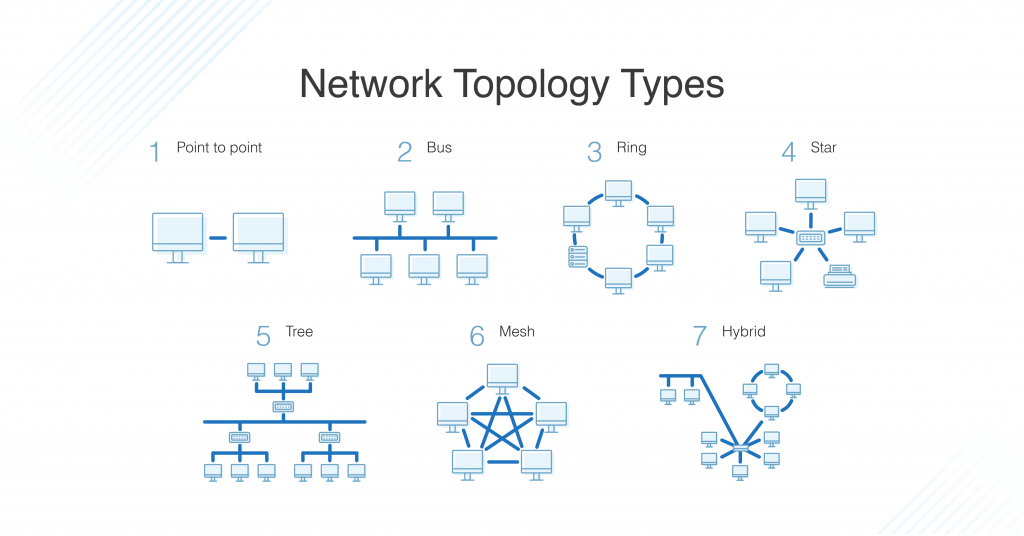
- Bus Topology: In a bus topology, all devices are connected to a single communication line called a “bus.” Data is transmitted in both directions along the bus, and each device receives the transmitted data. However, the data is only intended for the device to which it is addressed. The bus topology is straightforward to implement and cost-effective but may suffer from a single point of failure if the main bus line is disrupted.
- Star Topology: In a star topology, all devices are connected to a central device, usually a switch or hub. The central device acts as a connection point, and data is transmitted from one device to another through the central device. Each device has a dedicated connection to the central device, providing high reliability and easy fault detection. However, the failure of the central device can disrupt the entire network.
- Ring Topology: In a ring topology, devices are connected in a circular loop, with each device connected to two adjacent devices. Data is transmitted in one direction around the ring. When a device receives data intended for another device, it passes the data along to the next device until it reaches the destination. Ring topologies provide equal access to all devices and have no collisions. However, a failure in one device or connection can disrupt the entire network.
- Mesh Topology: In a mesh topology, every device is connected directly to every other device in the network, forming a full mesh of connections. This creates multiple redundant paths for data transmission, enhancing reliability and fault tolerance. Mesh topologies can be classified as partial mesh (only a subset of devices directly connected) or full mesh (every device directly connected). Mesh topologies provide high resilience but can be complex to implement and require more cabling.
- Tree Topology: The tree network topology, also called a star of stars, is a network where star topologies are themselves connected in a star configuration. Many larger Ethernet switch networks including data center networks are configured as trees.
These are just a few examples of network topologies. There are other topologies like tree topology, hybrid topology, and more. Each topology has its own advantages and is suited for different network requirements. The selection of a specific topology depends on factors such as scalability, fault tolerance, cost, and network design goals.
OR
Explain with suitable examples about the classification of computer software.
Classification of Computer Software:
Computer software can be classified into several categories based on their purpose, functionality, and licensing. Here are some common classifications of computer software along with suitable examples:
- System Software:
- System software refers to the essential software components that enable the functioning of a computer system and manage its resources. Examples of system software include:
- Operating Systems (OS): Windows, macOS, Linux, Android, iOS.
- Device Drivers: Software that enables communication between hardware devices and the operating system.
- Utility Programs: Antivirus software, disk management tools, file compression software, backup utilities.
- System software refers to the essential software components that enable the functioning of a computer system and manage its resources. Examples of system software include:
- Application Software:
- Application software includes programs that fulfill specific tasks or provide functionality for users. These programs are designed to meet specific user needs and requirements. Examples of application software include:
- Word Processing Software: Microsoft Word, Google Docs, Pages.
- Spreadsheet Software: Microsoft Excel, Google Sheets, Numbers.
- Presentation Software: Microsoft PowerPoint, Google Slides, Keynote.
- Graphic Design Software: Adobe Photoshop, CorelDRAW, GIMP.
- Accounting Software: QuickBooks, Xero, Sage.
- Video Editing Software: Adobe Premiere Pro, Final Cut Pro, iMovie.
- Application software includes programs that fulfill specific tasks or provide functionality for users. These programs are designed to meet specific user needs and requirements. Examples of application software include:
- Programming Software:
- Programming software consists of tools and applications used by software developers to create, debug, and maintain computer programs. Examples of programming software include:
- Integrated Development Environments (IDEs): Visual Studio, Eclipse, Xcode.
- Text Editors: Notepad++, Sublime Text, Atom.
- Compilers and Interpreters: GCC, Python Interpreter, Java Virtual Machine (JVM).
- Programming software consists of tools and applications used by software developers to create, debug, and maintain computer programs. Examples of programming software include:
- Embedded Software:
- Embedded software is specifically designed for embedded systems, which are specialized computer systems integrated within devices or machinery. Examples of embedded software include:
- Firmware: Software embedded in devices like smartphones, routers, and smart TVs to control their operations.
- Automotive Software: Software controlling various functions in vehicles, such as engine management systems and infotainment systems.
- Embedded software is specifically designed for embedded systems, which are specialized computer systems integrated within devices or machinery. Examples of embedded software include:
- Open Source Software:
- Open source software refers to programs whose source code is available to the public, allowing users to view, modify, and distribute the software. Examples of open-source software include:
- Operating Systems: Linux, FreeBSD, Ubuntu.
- Web Browsers: Mozilla Firefox, Chromium, Brave.
- Content Management Systems (CMS): WordPress, Joomla, Drupal.
- Open source software refers to programs whose source code is available to the public, allowing users to view, modify, and distribute the software. Examples of open-source software include:
- Proprietary Software:
- Proprietary software is developed and distributed by a company or individual under copyright protection. Users typically need to purchase a license to use proprietary software. Examples of proprietary software include:
- Microsoft Office Suite: Microsoft Word, Excel, PowerPoint.
- Adobe Creative Cloud: Adobe Photoshop, Illustrator, InDesign.
- Autodesk Software: AutoCAD, Revit, Maya.
- Proprietary software is developed and distributed by a company or individual under copyright protection. Users typically need to purchase a license to use proprietary software. Examples of proprietary software include:
- Shareware and Freeware:
- Shareware refers to software distributed freely for trial, but users are encouraged to purchase a license for extended usage or additional features. Freeware, on the other hand, is software available for free, with no licensing restrictions. Examples include:
- WinRAR (Shareware): Compression and archive utility.
- VLC Media Player (Freeware): Multimedia player.
- Shareware refers to software distributed freely for trial, but users are encouraged to purchase a license for extended usage or additional features. Freeware, on the other hand, is software available for free, with no licensing restrictions. Examples include:
In conclusion, computer software can be classified into various categories based on their purpose, including system software, application software, programming software, embedded software, open source software, proprietary software, and shareware/freeware. Each category serves specific functions and caters to diverse user requirements in the digital world.
Q.3. Explain the functioning of each components of CPU.
The Central Processing Unit (CPU) is often referred to as the brain of a computer. It carries out most of the processing tasks and controls the overall operation of the computer system. The CPU consists of several components, each with a specific function:
- Arithmetic Logic Unit (ALU):
- The ALU performs arithmetic operations (addition, subtraction, multiplication, division) and logical operations (AND, OR, NOT) on data stored in the computer’s memory. It performs calculations and executes logical comparisons required by the computer program instructions.
- Control Unit (CU):
- The Control Unit manages and coordinates the activities of other CPU components. It fetches instructions from memory, decodes them, and directs the ALU, memory, and input/output devices to carry out the necessary operations. It ensures that instructions are executed in the correct sequence.
- Registers:
- Registers are small, high-speed memory units located within the CPU. They store data and instructions that are currently being processed by the CPU. The main types of registers are:
- Instruction Register (IR): It holds the current instruction being executed.
- Program Counter (PC): It keeps track of the memory address of the next instruction to be fetched.
- Memory Address Register (MAR): It holds the memory address of data or instruction to be accessed.
- Memory Data Register (MDR): It temporarily stores data or instructions fetched from or written to memory.
- Registers are small, high-speed memory units located within the CPU. They store data and instructions that are currently being processed by the CPU. The main types of registers are:
- Cache Memory:
- Cache memory is a small, high-speed memory located inside the CPU. It stores frequently accessed data and instructions, allowing the CPU to quickly access them without needing to fetch them from the slower main memory (RAM). Cache memory helps in improving the overall performance of the system by reducing memory access time.
OR
Explain five network applications.
- Web Browsers:
- Web browsers are network applications that allow users to access and navigate websites on the internet. They interpret HTML (Hypertext Markup Language) code and display web pages containing text, images, videos, and interactive elements. Popular web browsers include Google Chrome, Mozilla Firefox, Microsoft Edge, and Safari. Web browsers enable users to browse the internet, search for information, shop online, and interact with various web-based applications.
- Email Clients:
- Email clients are applications that enable users to send, receive, and manage emails over a network. They provide features such as composing, organizing, and storing emails, as well as managing contacts and attachments. Examples of email clients include Microsoft Outlook, Gmail, Mozilla Thunderbird, and Apple Mail. Email clients utilize various network protocols like SMTP (Simple Mail Transfer Protocol) and POP/IMAP (Post Office Protocol/Internet Message Access Protocol) to send and receive emails.
- File Transfer Protocol (FTP) Clients:
- FTP clients are network applications that allow users to transfer files between a local computer and a remote server. They establish an FTP connection using the FTP protocol and provide a user-friendly interface for uploading, downloading, and managing files on remote servers. Some popular FTP clients include FileZilla, WinSCP, and Cyberduck. FTP clients are commonly used by web developers and system administrators to upload website files, transfer large files, and manage remote file storage.
- Voice over IP (VoIP) Applications:
- VoIP applications utilize network connections to enable voice communication over the internet instead of traditional phone lines. These applications convert voice signals into digital data packets and transmit them over IP networks. Popular VoIP applications include Skype, WhatsApp, Zoom, and Microsoft Teams. VoIP allows users to make voice and video calls, conduct conference calls, and send instant messages, often with additional features such as screen sharing and file transfer.
- Remote Desktop Applications:
- Remote desktop applications enable users to access and control a remote computer or server over a network connection. These applications establish a remote connection, allowing users to view the remote desktop, interact with the operating system, and run applications as if they were physically present at the remote location. Examples of remote desktop applications include TeamViewer, AnyDesk, Remote Desktop Connection (built into Windows), and VNC (Virtual Network Computing). Remote desktop applications are commonly used for remote technical support, remote administration, and accessing workstations or servers from a different location.
In conclusion, network applications play a crucial role in enabling various functionalities over computer networks. Web browsers facilitate internet browsing, email clients manage email communication, FTP clients enable file transfer, VoIP applications support voice and video communication, and remote desktop applications provide remote access and control. These network applications enhance productivity, communication, and collaboration in the digital age.
Q.4. Differentiate between the following (any two):
(a) LAN and WAN
LAN (Local Area Network):
- LAN refers to a network that spans a relatively small geographical area, such as a home, office, or building. It connects computers and devices within close proximity, allowing them to share resources and communicate with each other. LANs are typically owned and controlled by a single organization.
WAN (Wide Area Network):
- WAN, on the other hand, refers to a network that covers a large geographical area, often spanning multiple cities, countries, or even continents. It connects LANs and other networks over long distances, using various communication technologies such as leased lines, satellite links, or the internet. WANs are often owned and operated by multiple organizations or service providers.
Differences:
- Coverage: LANs cover a smaller area, such as a building or campus, while WANs cover a larger area, such as multiple cities or countries.
- Ownership and Control: LANs are usually owned and controlled by a single organization, while WANs may involve multiple organizations and service providers.
- Geographical Distance: LANs have a limited geographical scope, typically confined to a single location, whereas WANs can span across vast distances.
- Speed and Bandwidth: LANs generally provide higher speeds and bandwidth as they are confined to a smaller area, while WANs may have lower speeds due to the longer distances and the use of various network connections.
- Cost: LANs are usually less expensive to set up and maintain as they cover smaller areas and require less infrastructure. In contrast, WANs involve higher costs due to the need for long-distance communication links and more complex networking equipment.
(b) High level and low level language
High-Level Language:
- High-level languages are programming languages designed to be easily understandable and readable by humans. They are closer to human language and provide abstraction from the underlying hardware. Examples of high-level languages include Python, Java, C++, and JavaScript. High-level languages are portable and independent of the computer’s hardware architecture.
Low-Level Language:
- Low-level languages, also known as machine languages or assembly languages, are programming languages that are closer to the computer’s hardware and are specific to a particular computer architecture. They directly correspond to the machine code instructions executed by the CPU. Low-level languages are more difficult to read and understand for humans but allow direct control over the computer’s hardware.
Differences:
- Abstraction: High-level languages provide a higher level of abstraction from the computer’s hardware, making programming easier and more readable. Low-level languages are closer to the hardware and require a deeper understanding of the underlying architecture.
- Readability: High-level languages are designed to be easily readable and understandable by humans. They use natural language constructs and abstract away the details of hardware operations. Low-level languages have a more cryptic and complex syntax that closely represents machine instructions.
- Portability: High-level languages are generally portable, meaning that the same code can be executed on different computer systems with minimal modifications. Low-level languages are specific to a particular hardware architecture, making them less portable.
- Ease of Programming: High-level languages are easier to learn and use as they provide built-in functions, libraries, and abstractions. They allow programmers to focus on the logic of the program rather than low-level implementation details. Low-level languages require a deeper understanding of the hardware and manual memory management.
- Execution Efficiency: Low-level languages are generally more efficient in terms of execution speed and memory usage since they directly correspond to machine code. High-level languages may introduce some overhead due to their abstraction layers and additional processing required by the language runtime.
(c) GUI and CUI
Graphical User Interface (GUI):
- A Graphical User Interface (GUI) is a type of user interface that utilizes graphical elements, such as icons, windows, buttons, and menus, to interact with a computer system or software application. Here are the distinguishing features of a GUI:
- Visual Elements: GUIs present visual elements that represent different functions and options. Users interact with these elements using a pointing device, such as a mouse or touchpad, to click, drag, and select items on the screen.
- Ease of Use: GUIs are designed to be user-friendly and intuitive. They provide a visual representation of the system or application, making it easier for users to navigate, perform tasks, and access functionalities without the need for extensive knowledge of command-line instructions.
- Multitasking: GUIs enable multitasking, allowing users to run multiple applications simultaneously and switch between them seamlessly. Each application typically appears in its own window, which can be resized, minimized, or maximized.
- Visual Feedback: GUIs provide immediate visual feedback to users. For example, when a user clicks a button, the button may change color or display a pressed state to indicate that the action has been recognized and initiated.
- Rich Interaction: GUIs support a wide range of interactions, including selecting options from menus, dragging and dropping files, resizing windows, and manipulating graphical elements. They often incorporate visual effects, animations, and transitions to enhance the user experience.
Character User Interface (CUI):
- A Character User Interface (CUI), also known as a Command-Line Interface or Text-Based Interface, relies on text-based commands or instructions to interact with a computer system or software application. Here are the distinguishing features of a CUI:
- Text-Based: CUIs primarily utilize text-based input and output. Users enter commands or instructions via a keyboard, and the system responds with text-based information or results.
- Command Interpretation: CUIs require users to have knowledge of specific commands and their syntax. Users need to enter commands correctly to perform desired operations.
- Limited Visual Representation: CUIs typically lack visual graphical elements. Instead, they rely on text-based menus, options, and prompts to guide users through the interaction process.
- Efficiency for Experienced Users: CUIs can be more efficient for experienced users who are familiar with specific commands. They allow users to execute commands quickly by typing abbreviated or shortcut commands.
- Scripting and Automation: CUIs often support scripting or command automation, where users can create scripts or batch files to automate repetitive tasks or execute a sequence of commands.
In summary, GUIs provide a visually-oriented and user-friendly interface with graphical elements, while CUIs rely on text-based commands for interaction. GUIs are intuitive, support multitasking, and offer rich visual feedback, while CUIs require knowledge of specific commands and are often more efficient for experienced users.
Q.5. Write short notes on any two of the following:
(a) Multimedia
Multimedia:
- Multimedia refers to the integration of various forms of media, such as text, graphics, audio, video, and animations, into a digital format. It allows users to experience and interact with content that combines different types of media. Multimedia is extensively used in entertainment, education, marketing, and other fields.
- Features of Multimedia:
- Integration: Multimedia combines different types of media elements into a cohesive and interactive experience.
- Interactivity: Multimedia enables users to interact with the content, providing options for navigation, control, and engagement.
- Engaging and Captivating: Multimedia content can captivate the audience through the use of visuals, sounds, and interactive elements.
- Richness and Variety: Multimedia offers a wide range of media types, allowing for a richer and more diverse content experience.
- Information Presentation: Multimedia can present complex information in a more accessible and engaging manner, aiding in understanding and retention.
- Enhanced Communication: Multimedia facilitates effective communication by combining multiple modes of expression.
- Creative Expression: Multimedia provides a platform for creative expression and artistic endeavors.
- Flexible Delivery: Multimedia can be delivered through various channels, including websites, social media, presentations, and mobile applications.
(b) Mainframe computer
Mainframe Computer:
- A mainframe computer is a large, powerful, and high-performance computer system designed to handle extensive data processing and complex computing tasks. Mainframes are known for their reliability, scalability, and ability to support multiple users simultaneously.
- Key Characteristics of Mainframe Computers:
- Processing Power: Mainframes possess exceptional processing power, allowing them to handle massive volumes of data and complex calculations.
- Reliability and Availability: Mainframes are designed for high reliability and availability, often providing redundant components, backup systems, and fault-tolerant architectures. They offer features like hot-swapping, which allows components to be replaced without shutting down the system.
- Scalability: Mainframes are highly scalable, capable of supporting a large number of processors, memory, and storage resources. They can handle increasing workloads and accommodate the growing needs of organizations.
- Security: Mainframes prioritize data security and provide robust measures to protect sensitive information. They offer advanced authentication, access control, encryption, and auditing features to ensure data integrity and confidentiality.
- Virtualization: Mainframes often employ virtualization techniques, allowing a single physical machine to host multiple virtual machines or logical partitions. This maximizes resource utilization and provides flexibility in allocating resources to different tasks or users.
- Batch Processing: Mainframes excel at batch processing, where large volumes of data are processed in scheduled batches. This is particularly useful for critical business operations, such as banking transactions and payroll processing.
- Legacy System Support: Mainframes are well-suited for running legacy applications and systems that require high availability and stability. Many organizations still rely on mainframes to maintain their legacy software and data.
Mainframe computers are widely used in industries such as finance, healthcare, government, and large-scale enterprise environments where high performance, reliability, and data handling capabilities are essential.
(c) Fourth generation computer systems
Fourth Generation Computer Systems: Short Notes
Fourth generation computer systems refer to a significant advancement in computer technology that occurred in the late 1970s and continued through the 1980s. These systems introduced several key features and improvements compared to previous generations. Here are some notable characteristics and advancements of fourth generation computer systems:
- Microprocessors: The development of microprocessors was a defining characteristic of fourth generation systems. Microprocessors integrated the central processing unit (CPU) onto a single chip, making computers more compact, energy-efficient, and affordable. This advancement led to the widespread use of personal computers (PCs) and revolutionized the computer industry.
- High-Level Programming Languages: Fourth generation systems witnessed the rise of high-level programming languages. These languages, such as C, Pascal, and Fortran, offered greater abstraction and ease of programming compared to low-level languages like assembly. High-level languages facilitated faster development, improved code readability, and enhanced programmer productivity.
- Graphical User Interfaces (GUI): Fourth generation systems introduced graphical user interfaces (GUIs) that allowed users to interact with computers using visual elements such as icons, windows, and menus. GUIs provided a more intuitive and user-friendly experience, enabling users to navigate through applications, execute commands, and access features through a graphical representation rather than relying on text-based commands.
- Networking and Communication: Fourth generation systems saw significant advancements in computer networking and communication. Local Area Networks (LANs) became more prevalent, allowing computers to share resources, exchange data, and collaborate. This era also witnessed the emergence of protocols like Ethernet and TCP/IP, which laid the foundation for the modern internet.
- Mass Storage Devices: Fourth generation systems introduced new and improved mass storage devices. Hard disk drives (HDDs) with larger capacities and faster access times became widely available, enabling the storage and retrieval of vast amounts of data. Additionally, floppy disks and later, compact discs (CDs), provided portable storage options.
- Software Development Tools: Fourth generation systems introduced powerful software development tools, including integrated development environments (IDEs) and debugging utilities. These tools simplified the development process, offering features like code editors, compilers, and debuggers, which improved programmer productivity and software quality.
- Multitasking and Multiuser Support: Fourth generation systems introduced multitasking capabilities, allowing computers to execute multiple tasks simultaneously. Additionally, they provided multiuser support, enabling multiple users to access and use the same computer system concurrently.
- Advancements in Graphics and Multimedia: Fourth generation systems facilitated significant advancements in computer graphics and multimedia capabilities. They supported the development of computer graphics applications, digital imaging, video playback, and sound synthesis, paving the way for modern multimedia experiences.
Overall, fourth generation computer systems marked a significant milestone in the evolution of computing technology. The introduction of microprocessors, high-level programming languages, graphical user interfaces, networking capabilities, and improved storage devices revolutionized the way computers were used, making them more accessible, powerful, and user-friendly. These advancements laid the foundation for the rapid growth of personal computing and the modern digital age.
Q.6. Expand any five of the following terms:
(a) CPU
(a) CPU: Central Processing Unit
(b) ALU
(b) ALU: Arithmetic Logic Unit
(c) BASIC
(c) BASIC: Beginner’s All-purpose Symbolic Instruction Code
(d) WWW
(d) WWW: World Wide Web
(e) BCR
(e) BCR: Bar Code Reader
(f) LCD
(f) LCD: Liquid Crystal Display
(g) ISP
(g) ISP: Internet Service Provider
Q.7. Give DOS commands for the following (any five):
(a) To create a directory
(a) To create a directory: mkdir
(b) To rename a file
(b) To rename a file: ren or rename
(c) To remove an empty directory
(c) To remove an empty directory: rmdir
(d) To display the current date
(d) To display the current date: date
(e) To delete a file
(e) To delete a file: del
(f) To hide a file
(f) To hide a file: attrib +h
(g) To compare a disk with another disk
(g) To compare a disk with another disk: comp
Q.8. Fill in the blanks:
(a) * and ? is an example of __________ in DOS.
(a) * and ? is an example of wildcards in DOS.
(b) Example of a volatile memory is __________.
(b) Example of a volatile memory is RAM.
(c) DIR is an __________ command.
(c) DIR is an internal command.
(d) Computer uses __________ number system.
(d) Computer uses binary number system.
(e) The extension of a MS-PowerPoint file is __________.
(e) The extension of an MS-PowerPoint file is .pptx.